

Every marketer knows urgency sells. But slapping “Hurry!” on a subject line stopped working years ago. What still works — and what’s only getting more effective — is showing people exactly how much time they have left.
That’s the job of an email countdown timer: a live, animated image embedded inside an email that counts down to a specific deadline. When the recipient opens the email, they see real-time hours, minutes, and seconds ticking away. It’s visual. It’s concrete. And when done right, it reliably lifts click-through rates and conversions.
The data backs this up. According to Omnisend’s 2025 benchmarks, automated emails — the type most commonly enhanced with countdown timers — accounted for just 2% of email volume but drove 30% of all email-generated revenue, earning 16× more per send than scheduled campaigns. And email click-to-conversion rates jumped 53% year-over-year in 2024, meaning the subscribers who do engage are increasingly likely to buy. A countdown timer amplifies both metrics by making the deadline visible and immediate.
This guide covers everything you need to know about email countdown timers in 2026 — how they work under the hood, which type to use for your campaign, what breaks in different inboxes, and the best practices that separate high-performing timers from trust-destroying gimmicks.
Start here based on what you need:
- Best practices for placement, copy, and ethics
- Inbox support: what works in Gmail, Apple Mail, and Outlook
- Evergreen timers and personalised deadlines
- Add a timer to Klaviyo
- Add a timer to Mailchimp
- Add a timer to ActiveCampaign
- Add a timer to HubSpot
- Flash sale email flow playbook
- Cart abandonment timers
- What to show after the timer hits zero
- Landing page countdown timer alignment
- Measuring and A/B testing timers
- Design templates and proven layouts
- Timers and deliverability
What an email countdown timer is and how it works
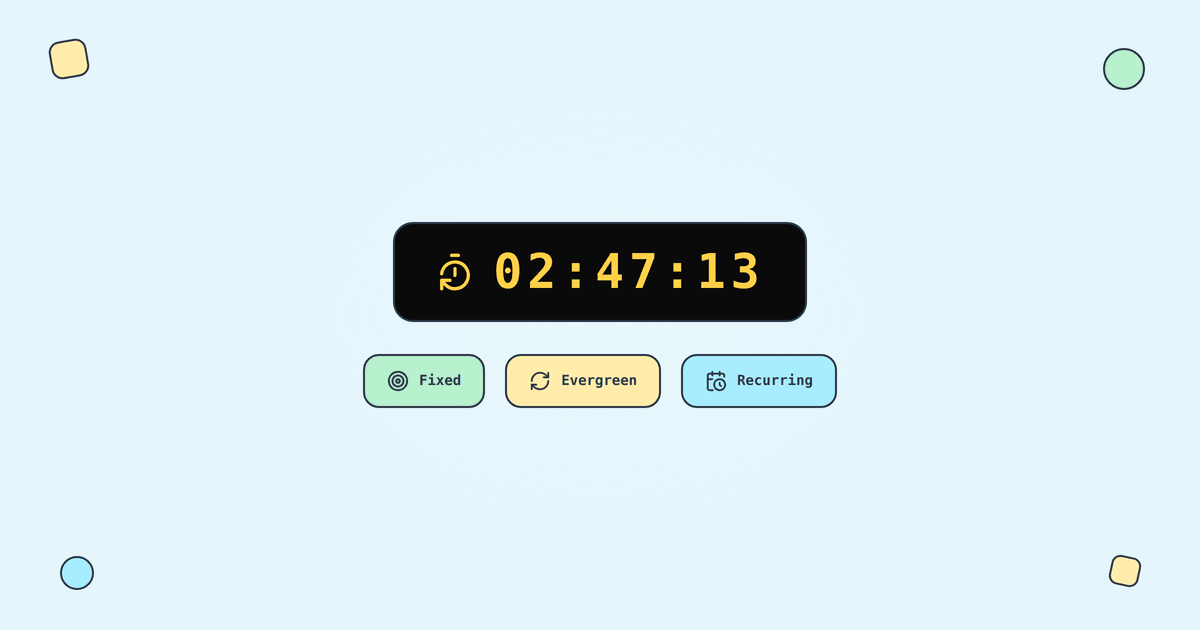
An email countdown timer is a dynamically generated image — usually an animated GIF — that displays the remaining time until a deadline. Unlike a JavaScript countdown you’d place on a webpage, email clients don’t execute scripts. So the timer lives as an image URL that gets rendered on-the-fly by a server every time the email is opened.
Here’s the sequence:
- You create a timer with a tool like Tickvio and set a deadline.
- The tool gives you an image URL or HTML embed code.
- You paste that into your email template.
- When a subscriber opens the email, their email client requests the image from the server.
- The server calculates the remaining time at that moment and returns a fresh animated GIF.
That “generate on open” behaviour is what makes the timer feel live. And because it’s just an <img> tag, it works in every email client that supports images — which is virtually all of them.
Why it’s an image URL, not a real HTML clock
HTML email is severely limited compared to the web. Most email clients strip JavaScript entirely, and CSS support varies wildly. That’s why countdown timers in email are almost always server-rendered images. The email itself contains nothing more than an <img> tag pointing to a URL — the heavy lifting happens on the rendering server.
This matters for two reasons. First, it means any ESP that supports images can display a countdown timer — no special plugins, no platform-specific widgets. Klaviyo, Mailchimp, ActiveCampaign, HubSpot, and 50+ more ESPs all work. Second, it means the timer’s accuracy depends on the email client actually fetching a fresh image at open time — which, as we’ll cover in the inbox support section, doesn’t always happen.
What “expiry state” means and why it matters
Every timer eventually reaches zero. What happens then is one of the most overlooked — and most important — details in countdown timer strategy.
If a subscriber opens your email after the deadline passes, the timer image still gets requested. A good timer tool serves an “expiry state” instead of a frozen 00:00:00. According to Litmus research, 1 in 6 marketing emails never reach the inbox on time — so a meaningful percentage of your audience will experience the post-expiry state. With Tickvio’s auto-expire feature, you can show a replacement message, redirect the image URL, or display an alternative CTA.
Read the full breakdown in our post-expiry playbook.
When countdown timers help (and when they backfire)
Countdown timers are a conversion tool, not decoration. They work when there’s a genuine deadline and a clear reason to act now. They backfire when the deadline is fabricated, the offer isn’t compelling, or the timer is used so often that subscribers learn to ignore it.
Flash sales and seasonal events
This is the most natural home for countdown timers. Black Friday and Cyber Monday campaigns, end-of-season clearances, and limited-time promotions all benefit from showing the exact time remaining. According to Omnisend, holiday mobile email opens reached 44.2% in 2024, and November was a record-breaking shopping period — making a visible countdown even more critical during peak season when inboxes are crowded. See our flash sale playbook for a full 7-email sequence.
Product launches and drops
Limited-edition drops, early-access windows, and waitlist countdowns create genuine scarcity. This works especially well in fashion and apparel, beauty and cosmetics, and consumer electronics. See our product launch use case for the complete strategy.
Automations and flows (evergreen deadlines)
Instead of counting down to a fixed date everyone shares, an evergreen timer creates a per-recipient deadline. This is where the real revenue opportunity lies — Omnisend’s data shows automated emails generate $2.87 per email versus $0.18 for standard campaigns. Evergreen timers are powerful for cart abandonment (where abandonment emails average 39.07% open rates and 23.33% CTR according to Analyzify’s 2024 data), trial expiry reminders, welcome series discounts (welcome emails achieve 83.6% open rates per GetResponse benchmarks), and post-purchase upsells. Tickvio’s evergreen timer feature handles per-recipient deadlines automatically.
The trust problem
If your timer says the offer ends at midnight, the offer must actually end at midnight. According to OptinMonster research, 59% of consumers say marketing emails influence their purchase decisions — but that influence depends on trust. Fake urgency tactics drive spam complaints and unsubscribes, which directly impact your deliverability. Gmail and Yahoo’s 2024 sender requirements specify complaint rates must stay below 0.3%. We cover the ethics framework in our best practices guide.
Types of countdown timers
Fixed deadline timers
Counts down to a specific date and time that’s the same for everyone. Best for: Flash sales, seasonal promotions, event registrations, product launches. See our flash sale, seasonal, and events use cases.
Evergreen / per-recipient deadlines
Generates a unique deadline for each recipient based on when they trigger an action. Best for: Welcome series discounts, cart abandonment, trial expiry, post-purchase upsells, re-engagement. More in our evergreen timers deep dive.
Recurring timers
Resets on a schedule — weekly, monthly, or custom intervals. Best for: Subscription boxes, recurring content drops, weekly promotions. See our recurring deals use case.
Decision tree
Single shared deadline? → Fixed. Individual deadline? → Evergreen. Repeating promotion? → Recurring. No real deadline? → Don’t use a timer.
Inbox support and technical pitfalls
Not every email client handles animated images the same way. According to Designmodo’s 2025 data, Apple Mail leads email client market share at 51.52%, followed by Gmail at 26.72% and Outlook at 7.06%. Each handles animated GIFs differently, and understanding these differences is critical for timer reliability. We cover this in full in our inbox support guide.
Apple Mail preloading and caching
Apple’s Mail Privacy Protection (MPP) can preload images before the recipient opens, and affects roughly 50–60% of recorded email opens according to Litmus data. Set a clear expiry state and send with time buffers (at least 2–4 hours before the deadline).
Outlook desktop GIF behaviour
Older Outlook desktop versions (which use Word’s rendering engine) don’t animate GIFs — they show only the first frame. Tickvio generates timers where the first frame clearly shows the countdown value, so Outlook users see the deadline text even without animation.
Mobile considerations
According to Designmodo, 55% of email opens occur on mobile devices. Ensure your timer is sized for mobile screens (full-width recommended) and that the CTA button is thumb-friendly directly below the timer.
Fallback strategies
Static first frame, conditional content, and expiry messages. Read the full fallback strategy guide.
Best practices that move conversion
These are covered in full in our best practices article. The key principles:
Placement and labelling
Place the timer near your primary CTA, not at the top as decoration. Always label what the timer counts down to: “Sale ends in:”, “Your offer expires in:”. A timer without context is visual noise. See our 12 design templates for proven layout options.
One email, one deadline
Don’t put multiple timers counting to different deadlines in the same email. One clear deadline per message.
Enforce the deadline
The discount code must expire at the same moment the timer hits zero. The landing page must reflect the same deadline. Late openers must see a clear expiry state. No “extended by popular demand” follow-ups.
Measurement and testing
Full guide on measuring countdown timer impact.
What to track
Click-through rate: The immediate metric. The average email click rate is 2.09% across all industries according to MailerLite’s 2025 benchmarks — a timer should meaningfully lift this for time-sensitive campaigns.
Revenue per email: The most important metric. Captures both conversion rate and order value.
Unsubscribe rate: The average is 0.22% in 2025 per MailerLite. If timer emails are significantly above this, the urgency is alienating rather than motivating.
Spam complaint rate: Must stay below 0.3% (ideally under 0.1%) per Gmail and Yahoo’s sender requirements. Monitor this per-campaign.
Late-opener conversion: How post-expiry opens perform. If late openers have high unsubscribe rates, your expiry state needs improvement.
Discount dependency: Track full-price purchase rates over 90 days. If declining, timer-driven discounts may be training customers to wait. See our cart abandonment guide for the discount dependency trap.
Use cases
Tickvio supports 12 detailed use cases, each with email flow structures, copy examples, and measurement guidance:
Flash sales • Cart abandonment • Welcome series • Product launches • Trial expiry • Events and webinars • Seasonal promotions • Re-engagement • Recurring deals • Post-purchase upsells • Membership renewal • Content and course launches
Industry-specific applications
Countdown timer strategy varies by industry. Here are the most popular verticals:
E-commerce and retail — E-commerce timer guide →
SaaS and software — SaaS timer guide →
Travel and hospitality — Travel timer guide →
Online education — Education timer guide →
Health and wellness — Health timer guide →
Real estate — Real estate timer guide →
Browse all 41 industry guides or see all supported ESP integrations.
Templates and examples
See our full design templates collection for 12 proven email layouts with copy blocks, placement guidance, and Outlook fallback considerations.
Get started
Creating your first countdown timer takes about two minutes. Start for free with Tickvio — choose a timer type, set your deadline, customise the design, and grab your embed code. No credit card. No dev work.
Need to see it in action first? Try the interactive demo.
If you’re ready to explore plans for higher volumes, custom branding, and advanced features like evergreen and recurring timers, see pricing.