

Your countdown timer looks perfect in your ESP's preview. Then it lands in a real inbox and things get complicated. Apple Mail shows a stale time. Outlook freezes on the first frame. Dark mode inverts your colours.
Inbox support is the technical layer that separates reliable countdown timers from unreliable ones. Understanding it matters because of the sheer scale involved: according to Designmodo's 2025 data, Apple Mail leads email client market share at 51.52%, followed by Gmail at 26.72% and Outlook at 7.06%. That means over 85% of your audience uses one of three clients — each with different GIF rendering behaviour. And with 55% of email opens happening on mobile, your timer needs to work on small screens too.
This guide covers exactly how every major email client handles animated timer images, what breaks, and what to do about it — informed by real-world rendering behaviour and documented platform limitations.
For the strategic context — when to use timers and which type to choose — start with our complete countdown timer guide.
How email countdown timers render (the basics)
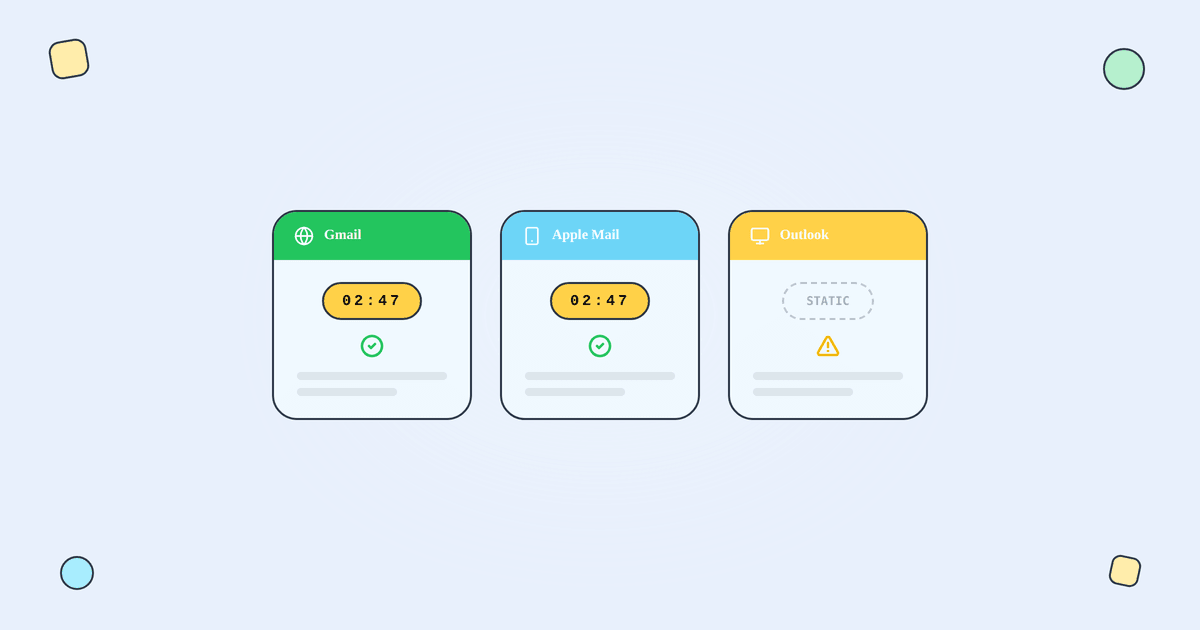
Before diving into client-by-client behaviour, it helps to understand the rendering chain.
When your subscriber opens an email containing a countdown timer, their email client sends an HTTP request for the timer image. The timer server (like Tickvio) receives that request, calculates the remaining time, renders an animated GIF, and returns it. The client displays the GIF.
Three things can interrupt this chain:
- Image preloading — The client fetches the image before the subscriber actually opens the email, so the countdown shows the wrong time.
- Image caching — The client stores the image from the first fetch and reuses it on subsequent opens, freezing the countdown at its original value.
- GIF support limitations — The client can't animate GIFs and shows only the first frame.
Every inbox behaviour problem with countdown timers traces back to one of these three mechanisms.
Client-by-client support breakdown
Gmail (Web, Android, iOS)
GIF animation: Supported. Animated timers display and tick as expected.
Image caching: Gmail caches images via its image proxy. On first open, the timer is fetched fresh and shows the correct time. On subsequent opens of the same email, Gmail may serve the cached version — so the time shown could be stale on re-opens.
Preloading: Gmail does not preload images by default. The image is fetched when the subscriber opens the email.
Dark mode: Gmail's dark mode inverts some elements. If your timer uses a white background, it may be rendered with a dark background instead. Tickvio's timers use transparent backgrounds by default, which adapt well to both light and dark themes. Test with both.
Verdict: Gmail is the most reliable client for countdown timers, with 26.72% of all email opens. First-open accuracy is excellent. Be aware that re-opens may show cached values.
Apple Mail (macOS and iOS)
GIF animation: Supported. Animated timers display correctly.
Image caching: Apple Mail caches images aggressively. Once the image is fetched, subsequent opens of the same email show the cached version. The timer essentially "freezes" at whatever time was displayed on first load.
Preloading and Mail Privacy Protection (MPP): This is the biggest challenge. Since iOS 15, Apple's Mail Privacy Protection can preload email content (including images) in the background — even before the subscriber reads the email. According to Litmus research, MPP now affects roughly 50–60% of recorded email opens.
The result: a subscriber opens the email at 3 PM and sees a timer that was rendered at 9 AM when MPP preloaded it. The countdown is six hours off.
Apple Mail holds 51.52% of email client market share — the single largest client. This means the MPP timing issue affects a significant portion of your audience.
What to do:
Build in time buffers. Don't send timer emails close to the deadline. If your sale ends at midnight, send by early afternoon — so even preloaded images show meaningful remaining time.
Optimise your expiry state. If MPP fetches the timer when there's 2 hours left but the subscriber opens it 3 hours later, they'll see a post-expiry state instead of a stale countdown. Make sure your expiry state is configured and helpful.
Don't rely on open-rate data from Apple Mail. MPP inflates open rates. Focus on click metrics and conversion data instead. More on this in our measurement guide.
Verdict: Apple Mail's animation support is excellent, but MPP creates timing challenges. Send with time buffers and always configure an expiry state.
Outlook (Desktop — Windows)
GIF animation: Not supported on most desktop versions. Outlook for Windows uses Word's rendering engine, which shows only the first frame of animated GIFs. This is a fundamental limitation of the platform, not a bug.
Image caching: Images are downloaded on first open. No significant caching issues beyond the static first frame.
Preloading: Outlook desktop doesn't preload images — it typically prompts users to "Download images" before displaying any external content. Once downloaded, the static first frame is displayed.
First-frame strategy: This is the critical workaround for Outlook. Your timer's first frame must be informative on its own. It should display the deadline text clearly: "Sale ends Friday at 11:59 PM" or "Offer expires March 28." Tickvio generates timers where the first frame includes the deadline text, so Outlook users see meaningful content even without animation.
Outlook.com (web) and Outlook mobile: Both support animated GIFs. The first-frame issue is specific to Outlook desktop for Windows. With Outlook holding 7.06% of market share, the desktop limitation affects a meaningful but manageable portion of your audience.
Verdict: Use informative first frames. Consider MSO conditional comments in HTML embeds to serve Outlook-specific static fallbacks.
Yahoo Mail
GIF animation: Supported. Timers animate as expected.
Image caching: Minimal caching issues. Images are fetched fresh on open.
Preloading: No preloading behaviour. Timer is rendered when the subscriber opens.
Verdict: Yahoo Mail is one of the most reliable clients for countdown timers. No significant issues.
Samsung Email
GIF animation: Supported. Animated GIFs render correctly.
Image caching: Similar to Gmail — images are cached via proxy on first open.
Verdict: Generally reliable. Test with Samsung-specific dark mode settings.
Dark mode across clients
Dark mode affects timer rendering across all clients, and its adoption continues to grow. The key considerations:
Gmail: May invert light backgrounds. Use transparent backgrounds on your timer to avoid unexpected colour changes.
Apple Mail: Supports dark mode natively. Transparent timer backgrounds adapt well. Solid white backgrounds will remain white (not inverted) in most cases.
Outlook: Dark mode behaviour varies between desktop and mobile. The desktop client may add a thin light border around images in dark mode. Test both themes.
Best practice: Design timers with transparent backgrounds and high-contrast text. This ensures readability in both light and dark mode without needing separate timer variants. Tickvio's timers use transparent backgrounds by default.
The testing workflow
Before sending any campaign with a countdown timer, run this testing process:
Step 1: Send a real test email. Don't rely only on ESP preview tools. Send the actual email to test accounts you control on Gmail, Apple Mail, and Outlook desktop.
Step 2: Check first-open accuracy. Does the timer show the correct remaining time when first opened? If not, check whether the image URL is being cached or rewritten by your ESP.
Step 3: Check the first frame. Open the email in Outlook desktop (or use a testing tool that renders the Outlook view). Is the first frame informative? Does it display the deadline text?
Step 4: Check the expiry state. Open the email after the deadline has passed. Do you see the configured expiry message, or a frozen 00:00:00? If the latter, check your expiry state configuration.
Step 5: Check dark mode. Switch Gmail, Apple Mail, and Outlook to dark mode and verify the timer is still readable. Check that text contrast is sufficient.
Step 6: Check mobile rendering. Since 55% of email opens occur on mobile, verify the timer displays correctly on iOS Mail and Gmail for Android. Check that the timer is large enough to be legible on smaller screens.
Common inbox issues and fixes
Timer shows the wrong time on first open. Usually caused by Apple MPP preloading. Fix: send with at least 2–4 hours of buffer before the deadline. Configure your expiry state as a fallback.
Timer doesn't animate in Outlook. Expected behaviour on Outlook desktop for Windows. Fix: ensure your first frame shows the deadline text. Consider MSO conditional comments for a static fallback image.
Timer looks different in dark mode. Fix: use transparent backgrounds, high-contrast text, and test in dark mode before sending.
Timer image blocked by default. Some corporate Outlook environments block external images by default. Fix: include clear alt text on the timer image ("Sale ends Friday at midnight") so users who haven't loaded images see the deadline message as text.
Timer shows stale time on re-open. Image caching in Gmail and Apple Mail. Fix: this is expected behaviour and generally acceptable — most conversion happens on first open. The cached time will be within hours of accurate, which is close enough for urgency.
ESP-specific embedding considerations
Each ESP handles image embedding slightly differently. Some rewrite image URLs through their own proxies. Others have specific requirements for HTML code blocks. For platform-specific embedding instructions that account for these inbox realities, see our ESP integration guides:
- Add a countdown timer to Klaviyo
- Add a countdown timer to Mailchimp
- Add a countdown timer to ActiveCampaign
- Add a countdown timer to HubSpot
Or browse all supported integrations to find your ESP.
Build with confidence
Create your timer for free with Tickvio. Every timer includes automatic first-frame optimisation, transparent backgrounds for dark mode compatibility, configurable expiry states, and HTTPS delivery — so you can handle inbox quirks without custom development. No credit card required.