

Mailchimp is one of the most widely used email marketing platforms, and adding a countdown timer to your Mailchimp emails is one of the fastest ways to boost click-through rates and conversions for time-sensitive campaigns. Whether you're sending a one-off campaign or building an automated journey, a live countdown timer makes deadlines visible and creates urgency that drives action.
This guide covers how to add a countdown timer to Mailchimp emails step by step, which timer types to use, and Mailchimp-specific considerations for campaigns and automations.
For the full strategic foundation, see our complete countdown timer guide.
How it works: the 2-minute setup
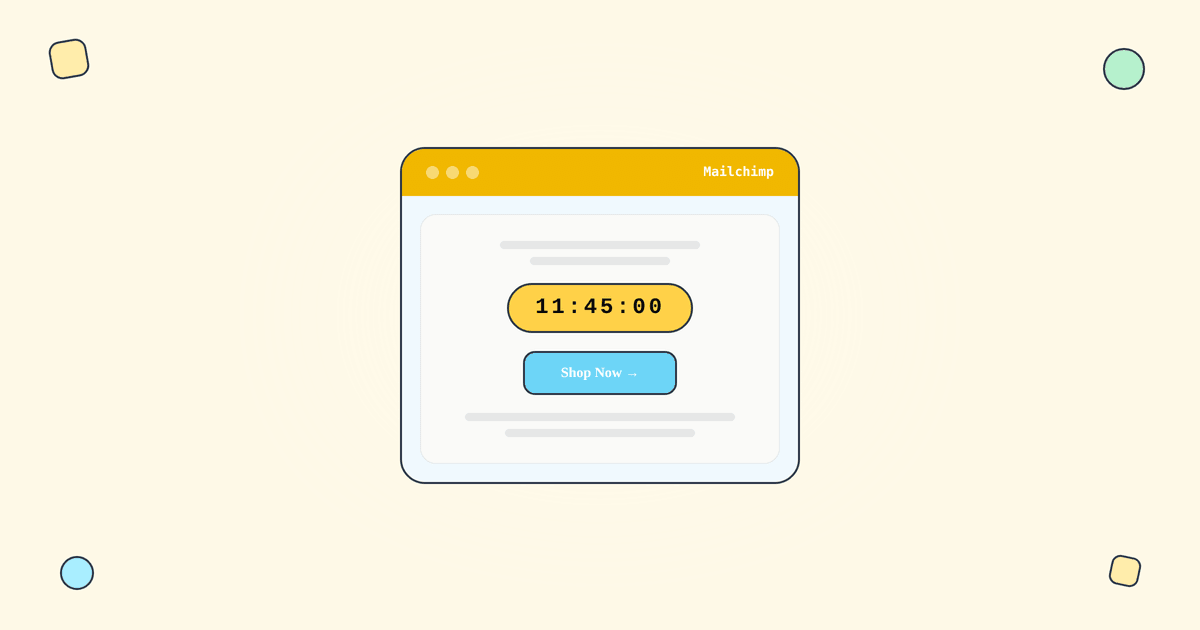
A countdown timer in a Mailchimp email is just an image URL. Here's the process:
Step 1: Create a timer in Tickvio. Choose your timer type (fixed deadline, evergreen, or recurring), set the deadline, and customise the design to match your brand.
Step 2: Copy the image URL.
Step 3: In Mailchimp's email designer, drag an Image content block into your template and paste the Tickvio image URL. Or use a Code block to paste the HTML embed.
Step 4: Send a test email to preview the timer.
When a subscriber opens the email, their email client requests the timer image from Tickvio's server. The server calculates the remaining time at that exact moment and returns a fresh animated GIF. Every open shows the current countdown — no JavaScript or Mailchimp-specific plugins needed.
For the technical details, see our complete guide.
Which timer type for which Mailchimp feature
Fixed deadline timers for regular campaigns
Use fixed-deadline timers for Mailchimp regular campaigns where all subscribers share the same deadline. This covers: flash sales, seasonal promotions, event registrations, product launches, and any time-bound offer sent to your full list or a segment.
Evergreen timers for Customer Journeys
Mailchimp's Customer Journey builder lets you create automated email sequences triggered by subscriber actions. For journeys, you need evergreen timers — per-recipient deadlines that start when each subscriber enters the journey.
Key journey use cases:
Welcome series: "Your 15% signup discount expires in 48 hours." Welcome emails achieve 83.6% average open rates per GetResponse benchmarks.
Cart abandonment: "Your cart is reserved for 24 hours." Requires Mailchimp's e-commerce integration (Shopify, WooCommerce, etc.).
Flash sale sequences: Multi-email flows where each email in the sequence shows the same shared deadline countdown.
Re-engagement: "Your exclusive 20% off expires in 72 hours." Triggered when subscribers haven't opened emails in a defined period.
Tickvio's free plan supports evergreen timers out of the box.
Recurring timers
For weekly newsletters with a recurring promotion or monthly deal emails, recurring timers auto-reset. Embed once, and the timer automatically counts down to the next instance of your deadline.
Mailchimp-specific considerations
Image block vs Code block
Mailchimp offers both Image blocks and Code blocks in the email designer. The Image block method is simpler (just paste the URL), while the Code block gives you more control over sizing and responsive behaviour. For most users, the Image block works well.
Mailchimp's built-in timer vs Tickvio
Mailchimp offers a basic built-in countdown timer through its content blocks. However, it's limited: fixed deadlines only, minimal design customisation, no expiry state handling, and no evergreen or recurring timer support. For automated journeys and professional timer experiences, a dedicated tool like Tickvio is required.
E-commerce integration
If you're using Mailchimp with Shopify or WooCommerce, cart abandonment journeys can trigger automatically. Adding an evergreen timer to the abandonment email creates a visible reservation window. The Mailchimp integration page has the full setup guide.
A/B testing
Mailchimp supports A/B testing for campaigns. Create two variants: one with the countdown timer, one without. Compare click-through rates and conversion over at least 1,000 recipients per variant. See our measurement guide for the framework.
Deliverability
Mailchimp has solid deliverability infrastructure. The timer adds a single external image request served from Tickvio's CDN. Follow our deliverability guide and best practices for frequency and placement.
A worked example: a 48-hour flash sale in Mailchimp
Say you're running a weekend flash sale. In Tickvio, create a fixed-deadline timer set to Sunday 11:59 PM, style it to match your brand, and copy the image URL. In Mailchimp, open your Regular email, drop in an Image block directly above your main call-to-action button, and paste the URL. That's the whole build — the timer now renders live every time a subscriber opens the email, counting down to the exact deadline.
For the follow-up "last chance" send on Sunday morning, reuse the same timer. Because it counts to a real date, the remaining hours update automatically — no rebuilding, no editing the design. Place the timer high in the email so it's visible without scrolling, and mention the deadline in your subject line to lift opens before anyone even sees the countdown.
Common mistakes to avoid
- Burying the timer below the fold. Urgency only works if it's seen. Put the countdown near the top, ideally right above the CTA.
- Using a fixed date for an always-on flow. If a timer lives in a Customer Journey that sends continuously, a fixed date will expire. Use an evergreen timer so each subscriber gets their own personal countdown from the moment they open.
- Forgetting the expired state. Decide what the timer shows after zero — a zeroed clock or a custom "offer ended" image — so a late opener never sees a broken deadline.
- Relying on Mailchimp's built-in timer for advanced needs. It's fine for a simple fixed date, but it lacks evergreen, recurring, and analytics. See our Mailchimp integration guide for the full picture.
Frequently asked questions
Does Mailchimp have a built-in countdown timer?
Yes — Mailchimp offers a basic fixed-date countdown timer content block. It works for a single deadline but doesn't support per-subscriber evergreen timers, recurring auto-reset schedules, or view analytics, which is where a dedicated tool like Tickvio adds value.
Will a Tickvio timer work in Mailchimp Customer Journeys?
Yes. Because the timer is a standard image URL, it renders in Regular campaigns and Customer Journey emails alike. For journeys that send over time, use an evergreen timer so every subscriber sees their own live deadline.
Do I need a paid Mailchimp plan to add a countdown timer?
No. Any Mailchimp plan that lets you add an image or code block to an email supports a Tickvio timer — which is every plan. Tickvio itself has a free plan with 20,000 views a month.
Why doesn't my timer animate in Outlook desktop?
Outlook desktop doesn't animate GIFs — it shows the first frame. Tickvio renders that first frame as the deadline (for example "Ends Sunday 11:59 PM") so Outlook users still get the message. Every other major client, including Gmail, Apple Mail, and mobile, shows the live countdown.
Get started
Create a free countdown timer and embed it in your next Mailchimp campaign or Customer Journey. All timer types work with Mailchimp — no credit card required.