
Product launches create natural urgency — limited stock, early-access windows, and pre-order deadlines are all genuine time constraints. A countdown timer makes these deadlines visible and visceral, turning "the product launches soon" into a specific, ticking moment that drives action.
How it works
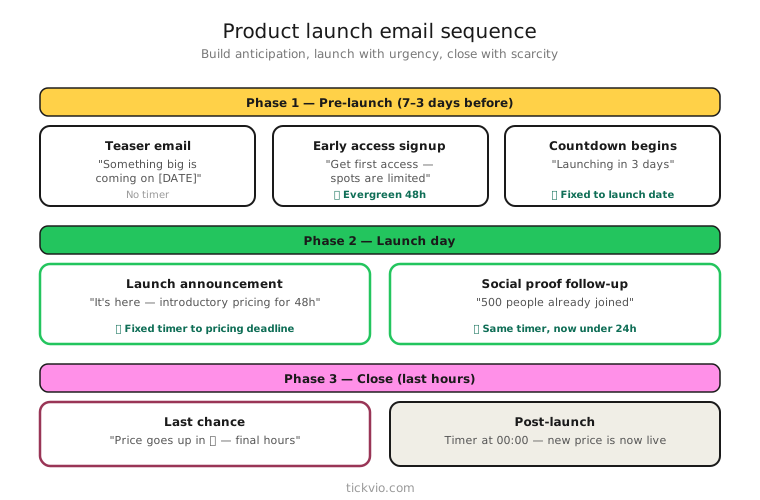
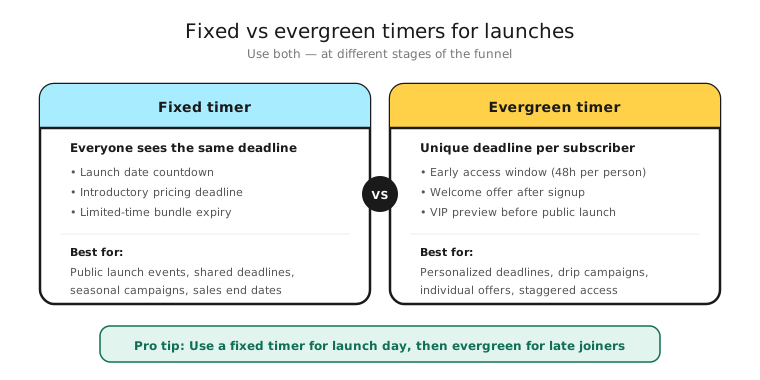
Use a fixed deadline timer counting down to the launch moment, the end of early access, or the pre-order cutoff. The entire audience shares the same deadline, which creates collective anticipation — everyone is counting down to the same moment together.
One timer URL works across your entire launch sequence. Create it once in Tickvio, and every email in the sequence shows the live countdown to the same deadline. The timer value automatically decreases with each subsequent email open.
Launch email sequence
A launch sequence typically has 4–5 emails, each with a specific role. Here's how to integrate timers at each stage:
Email 1: Announcement (1–2 weeks before launch). Build anticipation. Tease the product, share the launch date, but don't include a timer yet. The goal is awareness, not urgency — urgency comes later when the window is shorter.
Email 2: Early access opens (launch day or early-access start). Introduce the timer in hero position. "Early access ends in [TIMER]." This is the first moment subscribers see the clock, and it should feel significant.
Email 3: Reminder (midway through the window). Timer in companion position — above the CTA, below the product details. The product benefits are the focus; the timer adds urgency. "Still deciding? You have [TIMER] left at the early-access price."
Email 4: Last chance (final hours). Timer back in hero position. Copy shifts to urgency: "Early access closes tonight" or "Pre-order pricing ends in [TIMER]. After that, it's full price."
Email 5: Launched / sold out (post-deadline). No timer. Close the loop. "Early access has ended — the product is now available to everyone at regular pricing" or "Pre-orders are closed — join the waitlist for the next batch."
For the detailed flow structure with copy templates, read our flash sale email flow playbook — launch sequences follow the same principles.
Early access with evergreen timers
If your launch includes tiered access — VIPs get 24 hours before general availability — you can use an evergreen timer to give each VIP their own early-access window. The 24 hours starts from when that VIP receives the notification, not from a shared calendar date.
This works especially well for fashion drops (limited-edition collections), consumer electronics (new product reveals), and gaming launches (beta access windows).
Types of launch deadlines
Not every launch timer counts down to the same thing. Match the deadline to what actually happens:
Pre-order close: "Pre-orders close in [TIMER]. After that, you'll wait for general availability." The action is clear — order now or wait.
Early-bird pricing: "Launch price of $49 ends in [TIMER]. Regular price is $79." The consequence of inaction is specific and financial.
Limited edition/stock: "Only 500 units available. First-access window closes in [TIMER]." Combines time scarcity with quantity scarcity. Only use this if the numbers are real.
Waitlist priority: "Confirm your spot in the next [TIMER] to keep your place in line." For products with high demand and limited initial supply.
Copy frameworks for launches
The "insider" frame: "You're getting this 24 hours before anyone else. Your early-access window closes in [TIMER]." Makes the subscriber feel special, which increases both open rates and conversion.
The "price change" frame: "In [TIMER], the price goes from $49 to $79. This is the only time we'll offer the launch price." Clear, specific, financial — the most credible form of urgency because it's verifiable.
The "availability" frame: "We made 500. Your access window closes in [TIMER]. Once they're gone, they're gone." Only use when stock constraints are real.
Landing page alignment
Your launch email timer and landing page timer must show the same deadline. Nothing breaks trust faster than clicking through from "2 hours left" to a page that says "Sale ends this week" or shows no deadline at all.
For fixed deadline launches, use a JavaScript timer on the landing page counting to the same deadline. For evergreen early-access windows, pass the subscriber's deadline via URL parameter so the landing page shows their personal countdown.
Post-launch expiry
After the launch window closes, late openers should see a helpful expiry state:
"Early access has ended. The product is now available to everyone at regular pricing." or "Pre-order pricing has ended. Get notified about future launches."
The worst post-launch experience: a frozen 00:00:00 timer with a link to a page that still looks like the launch is happening. Configure the expiry state before you send the first email.
Common mistakes
Timer before there's anything to count down to. Don't put a timer in the announcement email sent weeks before launch. The timer should appear when the actionable window opens, not before.
Extending the launch period. "Due to popular demand, we've extended early access!" This destroys credibility. If the timer said it ended, it needs to end. Read our best practices on ethics.
Multiple timers for multiple deadlines. Don't count down to both "early access ends" and "product launches" in the same email. One email, one deadline. See our one-email-one-deadline rule.
Industry applications
Product launch timers work across: fashion and apparel (seasonal collections, limited drops), beauty and cosmetics (new product lines), consumer electronics (new models, pre-orders), gaming (beta access, game launches), publishing (book launches, pre-orders), and food and beverage (seasonal releases, limited batches).
ESP setup
Launch timers work with every major email platform. For step-by-step instructions, see our guides for Klaviyo, Mailchimp, ActiveCampaign, HubSpot, and all supported integrations.
Get started
Create a free launch countdown timer — one URL works across your entire launch email sequence. Set the deadline, customise the design to match your brand, configure the expiry state, and build anticipation that converts. No credit card required.