

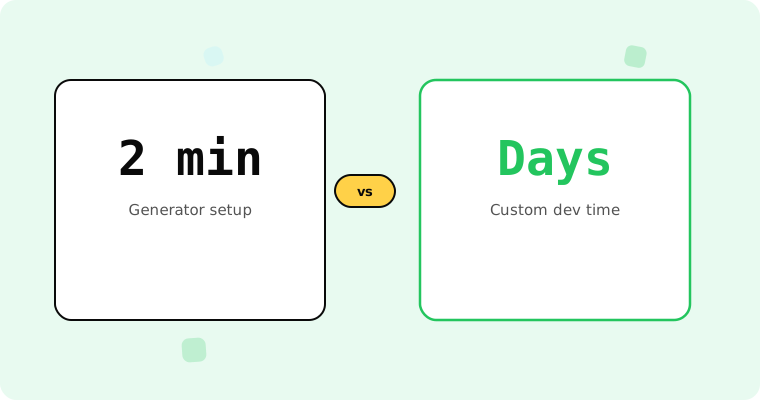
You don’t need a developer, a design tool, or any technical knowledge to add a countdown timer to your next email. A countdown timer generator handles the rendering, hosting, and delivery — you just set the deadline, customise the look, and paste the code into your email template.
The payoff for those two minutes of work is significant. According to Omnisend’s 2025 benchmarks, automated emails with urgency elements generate 16× more revenue per send than standard scheduled campaigns. A countdown timer is one of the simplest ways to add that urgency to any email — and a generator makes the process accessible to anyone, regardless of technical skill.
This guide walks through exactly how email countdown timer generators work, what to look for in one, and how to create your first timer from scratch in under two minutes.
How email countdown timer generators work
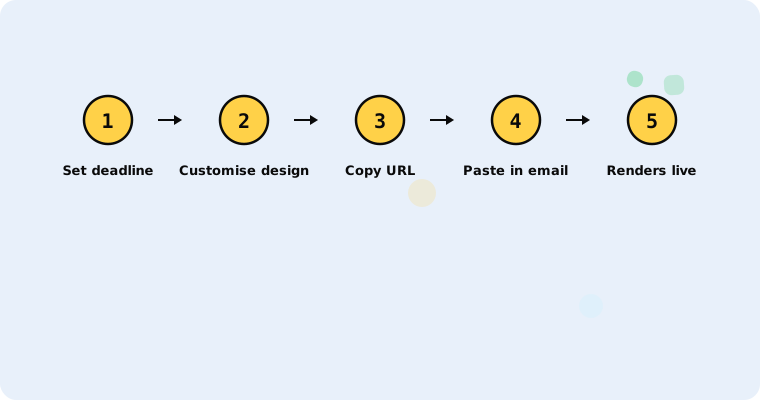
An email countdown timer generator is a web app that creates a dynamically rendered image — usually an animated GIF — that displays a live countdown to your specified deadline. Here’s the sequence:
- You open the generator and set a deadline (date, time, timezone).
- You customise the design (colours, font style, labels).
- The generator gives you an image URL or an HTML embed code.
- You paste that URL or code into your email template.
- When a subscriber opens the email, their email client requests the image from the generator’s server.
- The server calculates the remaining time at that moment and returns a fresh animated GIF showing the live countdown.
Because the timer is just an image URL, it works in any email client that supports images — which is virtually all of them. No JavaScript, no special plugins, no ESP-specific features required. It’s a standard <img> tag pointing to a dynamic URL.
For the full technical explanation of how email countdown timers work under the hood, see our complete guide.
What to look for in a countdown timer generator
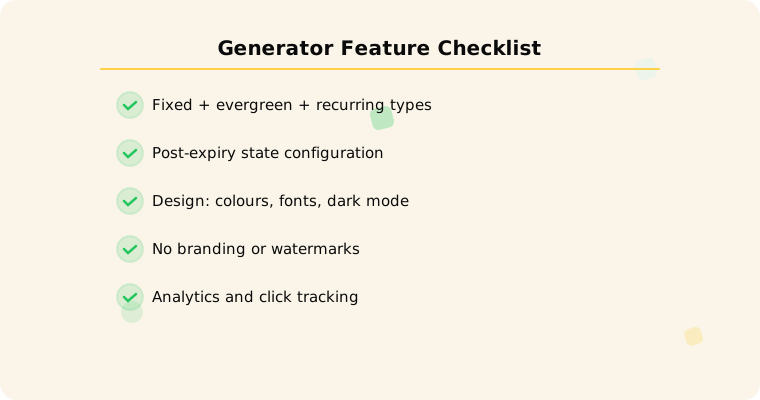
Not all generators are equal. Here’s what separates a reliable generator from one that’ll cause problems mid-campaign:
Timer type support
A basic generator creates fixed-deadline timers — everyone counts down to the same shared deadline. That’s fine for one-off campaigns.
A good generator also supports evergreen timers (per-recipient deadlines for automated flows) and recurring timers (auto-resetting for weekly or monthly promotions). If you’re planning to use timers in welcome series, cart abandonment, or trial expiry flows, evergreen support is non-negotiable. According to Omnisend, automated emails drive 30% of all email-generated revenue from just 2% of volume — and those automations need per-recipient timers.
Expiry state handling
What happens when a subscriber opens the email after the deadline passes? According to Litmus research, 1 in 6 marketing emails never reach the inbox on time. A good generator lets you configure an expiry state: a replacement image, an alternative CTA, or a redirect URL. A bad generator shows a frozen 00:00:00 with no context.
Design customisation
At minimum: colours, font style, and size. Better generators offer: background options (transparent is best for dark mode compatibility), label formatting, first-frame control for Outlook (which shows only the first frame of GIFs), and responsive sizing for mobile (which accounts for 55% of email opens).
No branding or watermarks
Many free generators display their own branding on the timer image. This undermines your email’s professional appearance. Look for generators that offer clean, unbranded output — even on free plans.
Analytics
Timer view counts, click tracking, and integration with your ESP’s conversion data. Without analytics, you can’t measure whether the timer actually improved your campaign.
ESP compatibility
Any generator that outputs an image URL works with any ESP. But some offer deeper integrations — like Klaviyo Universal Content Blocks or direct embed helpers for Mailchimp, ActiveCampaign, and HubSpot. Browse all supported integrations.
How to create your first timer (step by step)
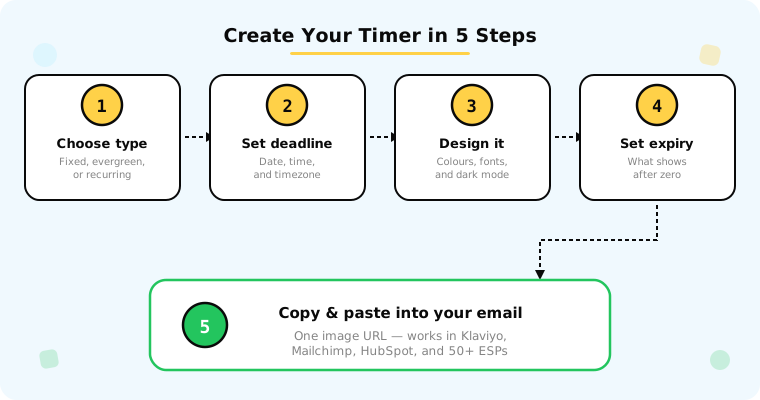
Here’s the process using Tickvio’s free countdown timer generator:
Step 1: Choose your timer type
Fixed deadline for one-time campaigns (flash sales, seasonal promotions, events). Evergreen for automated flows (welcome series, cart abandonment, trial expiry). Recurring for repeating promotions (weekly deals, monthly drops).
Step 2: Set the deadline
For fixed timers: enter the exact end date, time, and timezone. For evergreen timers: set the window duration (24, 48, or 72 hours). For recurring timers: set the interval (weekly, bi-weekly, monthly) and the reset day/time.
Step 3: Customise the design
Match the timer to your brand: colours, font, size, background. Ensure the design works on both light and dark backgrounds. Preview it at mobile sizes to confirm readability.
Step 4: Configure the expiry state
Set what late openers see: a "Sale ended" message, an alternative offer, or a redirect URL. This is the step most generators skip — and the step that prevents 10–30% of your opens from being wasted.
Step 5: Copy and paste
Copy the image URL and paste it into an Image block in your email template. Or copy the HTML embed code and paste it into a Code block. That’s it. The timer is live.
For platform-specific embedding instructions, see our guides for Klaviyo, Mailchimp, ActiveCampaign, and HubSpot.
Common generator mistakes to avoid
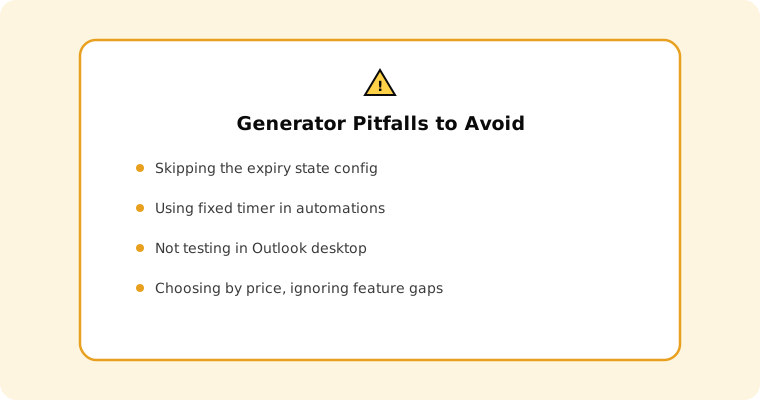
Skipping the expiry state. The most common mistake. Configure it before you send — not after late openers start complaining.
Using the wrong timer type. A fixed timer in an automation that processes subscribers over days means late entrants see an expired timer. Use evergreen timers for automations.
Not testing across email clients. Your timer may look perfect in Gmail but freeze in Outlook desktop (which shows only the first frame of GIFs). Send test emails to multiple clients before launching. See our inbox support guide.
Choosing a generator based on price alone. A free generator with no expiry state, no evergreen support, and third-party branding may cost you more in lost conversions and subscriber trust than a $9/month tool that does everything right.
Why Tickvio
Tickvio’s countdown timer generator is purpose-built for email. It supports all three timer types, configurable expiry states, full design customisation, no branding on the free plan (20,000 views/month), and works with 50+ ESPs.
The free plan is generous enough for most small and mid-size email programmes. When you need more volume, paid plans start at $9/month for 150,000+ views.
Get started
Create your first countdown timer for free — set the deadline, customise the design, configure the expiry state, and paste the image URL into your email template. Two minutes, no credit card, no development work. Follow our best practices to maximise the impact.